
As I expected, installing the 64 bit version Windows 7 on my MacBook Pro wasn’t as easy as perhaps it should have been.
You can’t just burn the x64 image to a disk and expect it to work. My MBP didn’t boot from the disc presenting me with the same stuff as it did with Vista (choose option 1 or 2, but the keyboard doesn’t work!).
There are even some new issues introduced by Snow Leopard which I deal with at the end.
However, I’ve had further time to research better methods of getting around this issue since I wrote the Vista x64 article.
Note: I wrote this guide using my MacBook Pro which I got in Summer 2007. (Apple identifies it as “MacBookPro3,1”; It’s the Santa Rosa 2.4Ghz model). Some steps may not be required for your Mac. By deduction, I have already determined that some people are able to boot straight from the DVD. I wasn’t able to.
Ok, here we go:
Follow the instructions here to build a compatible iso file.
Burn that iso image to a DVD (I’ve tried with a USB flash drive but it wouldn’t boot 😦 )
Put it in your MacBook / MacBook Pro / iMac…. and install like normal! 🙂
Driver support in Windows 7 is okay for my MacBook Pro; certainly a lot better than it was with Vista x64, but you’ll still want to install some stuff especially if you’re on a laptop (to get the brightness adjustment, bluetooth, touchpad etc., working). So:
Put your Snow Leopard disk in, if you have one. And follow the instructions below if you see that message.
Otherwise:
If you don’t have Snow Leopard, try your Leopard DVD and run the setup from there (Mine doesn’t have the 64 bit drivers on, yours may. Who knows….)
Or finally, you can download the individual driver files from the above package which should save some time waiting for Rapid Share. They’re here. You won’t see any application run, maybe just a UAC prompt, but they do work.
Now you should have a completeish install; but, be sure to check Windows Update (there’s a better video driver) and apply security updates / install antivirus….
Oh, and to get sound working you can just run the RealTekSetup.exe from any of the above packages in Vista compatibilty mode and it’ll work.
Whichever method you choose: you should update to the latest version (3.1 at time of edit) which can be downloaded here. You have to install a previous version before that though.
/
EDIT: to improve your hard drive’s windows experience rating, look at the solution I posted in the comments below.
Snow Leopard edit: Now that Snow Leopard is out, all the disks have x64 drivers on them. So, if you can, use that. However, if you have an oldish Mac like mine, you may see the following message (Boot Camp x64 is unsupported on this computer model)
After installing the drivers from the disk, you should update to Boot Camp version 3.1 from here.
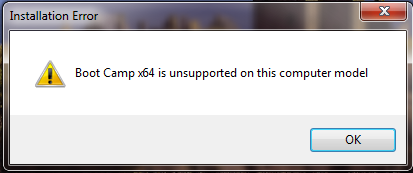
If you do see that, it’s no big deal. Just open up command prompt as an administrator (in the start menu type cmd, right click on it and select Run as Administrator, click yes on the UAC prompt).
In the command prompt window, change to the DVD’s directory by running
cd /d D:
(assuming your Snow Leopard disk is in the D drive).
Now type
cd Boot Camp\Drivers\Apple
And then finally, type
BootCamp64.msi
This circumvents the installers check of your computer model and installs all the relevent drivers properly.


 Josh Anderson's Blog
Pingback: MacBook Pro and Vista 64 bit (x64) - A guide of sorts « Josh Anderson’s Blog
You are the only person (at least what I have found) that has managed to find a solution for audio in Windows 7 x64. Thanks a lot!
Hello, thanks to your guide I set up Win 7 successfully, only glitch I have is a disk performance score of “2.0” in the performance assessment tool – do you have the same score? (I remember having score of not less than 5 on Vista x64 SP1) I did something a bit special – I had x64 Boot camp installer (that installs just the boot camp program without drivers), and then installed the 2.1 Vista x64 update. I also remember I installed chipset drivers from Intel in Vista x64, but in Win 7 it complained about not being tested for this OS, and refused to install.
Sadly I don’t think it’s a glitch. I have the same rubbishy rating for my hard drive and I read that it is given because they added a new test since the Vista version.
Something to do with random access seek times, if I recall correctly.
/
Do you know if you can use the Apple Boot Camp 2.1 Vista64 update after installing the 2.01 update listed here? Or should I just leave it at 2.01?
Yeah, 2.1 works ok. But I don’t think there’s a great difference.
You might come across a bug with Windows 7 and msi installers when trying to install it; I did. But fortunately, the solution center offers very clear instructions on how to resolve this and it’ll install fine.
/
I’ve come across a way to improve the hard drive score in 7’s experience index.
You can follow the instructions here. (I recorded this using the new problem recorder in windows 7; it outputs a funny xml file that may not show properly in anything other than IE8, but it worked ok for me in Opera, not firefox).
Anywho, there is a version without pictures that may work better here.
And, if all else fails, there’s this screenshot of the whole page: here
The solution upped my hard drive rating from a measly 2.0 to a rather nicer 4.8 bringing the overall score with it. Not sure what kind of real world difference not having write caching enabled has on things, but 7 obviously gets better transfer rates this way.
/
Hey, I appreciate this info as Im desperately trying to get windoes 7×64 working on my mac pro, but I;m having a problem with the image step. Whe I have tried to perform the operation it says that oscdimg is an urecognised command. Is there something els I need to do?
Thanks!!
Hi James….
Did you complete step 3 of that guide and download oscdimg into the folder he suggests?
If you did then in command prompt you’ll need to cd (change directory) to that folder by issuing the command cd \efi-dmg
I think it says that in the guide I linked to.
If you didn’t download oscdimg, then that’s your problem! It won’t be recognised because it’s not there.
Go back and read the instructions properly. If you’re still having problems comment back.
/
Thanks for the reply Josh!
I Finnaly got it to work and I have 7 X64 running on my mac pro as we speak! I was actually following the steps correctly, the only thing I did differently this time is I ran the oscdimg.exe before doing the steps, which might have been just assumed. Anyway I’m stoked and I can’t thank you enough for the link.
Hi Josh
Ok..I just installed Windows 7 build 7057 onto my 17″ macbook pro (early 2009 model). I got everything running except the wifi. It seems to show a live connection available but refuses to get online. I installed all the drives from my leopard 10.5 cd but still no luck. I tried resetting my router several times but still no luck. I have also tried connecting directly with an ethernet cable but that doesnt get detected at all. Do you have any idea what I should try next? I know theres a newer build of Win 7 (7068) and I dont know what bugs have been fixed with that release.
^^ Ignore the previous message. I fixed the problem. After removing the broadcom driver in device manager I rebooted…windows 7 then reinstalled the driver automatically and everything worked fine. My first imressions of Windows 7 are good…Im impressed by the speed (compared to my 64bit Vista).
I’ve got build 7068 on my MBP (though it’s 32 bit at the moment). I haven’t noticed anything different from 7057 so it really isn’t a worthwhile upgrade. Wait for the RC is my advice.
And it’s good that Windows 7 has the drivers already, isn’t it? Lots of stuff works already when it’s just been installed so it’s much easier to get boot camp drivers onto the machine without using a dvd etc.,
No idea why it wouldn’t work through ethernet though, I would have thought that it has a fairly common adaptor there and that the drivers should be present already. Does it work now that you have connected to the internet? i.e. Has it updated the drivers now?
I wish I had a unibody MBP 😦 How’s the battery life on it?
/
Hi Josh
Yeh..all working now. I connected to Windows update but it didnt seem to detect any new updates except for Silverlight (I would have expected there to be at least a few new updates).
Also…I think the problem with my wifi was cause by Eset Smary Security’s firewall settings. But like I say its all running sweet now.
Also…I ran the “windows experience index” benchmarks with the following results:
Overall Score: 5.3
Processor Intel(R) Core(TM)2 Duo CPU T9550 @ 2.66GHz 6.3
Memory (RAM) 4.00 GB 6.3
Graphics NVIDIA GeForce 9600M GT 5.3
Gaming graphics 2291 MB Total available graphics memory 5.3
Primary hard disk 47GB Free (101GB Total) 5.9
I should mention that I have the upgraded (7200rpm) hdd drive rather than the standard 5400 disk.
As for battery life…I havent used the PC partition much with battery and generaly Im using the OSX partition with the faster graphics card enabled but with the integrated gfx I can get more over 6 hours depending what Im doing.
LOL…I never thought I would say this but after 20 years with PCs I am SOOOOO happy to get my first mac 🙂
Thanks Josh, I will take a look and try it and let you know.
Thanks for the tip on getting the drivers to install on a MacBookPro3,1!
Does this method work with for Windows 7 RTM version?
It sure does.
Josh, are you SURE it works with the RTM version of Win7 64bit? I tried running the MSI from within the GUI, and got an error that it needed to be run via the installer. I didn’t try using the command prompt method. I am also running Snow Leopard; but on an early 2009 13″ unibody MacBook.
Let me know as soon as you can. I’d really like to run the 64bit version instead of the 32bit version.
I’m 100% sure it works on RTM x64 Windows 7. I’m using it right now. I can scroll using the touchpad, adjust the screen brightness, volume…..
I’ve just discovered a different method that you can try (and I will probably update the main post later to reflect the fact that this is easier).
With the Snow Leopard disk in; navigate to ‘Boot Camp\Drivers\Apple’. Click once on ‘BootCamp64’ to select it, hit alt on the keyboard and then from the File menu click ‘Troubleshoot Compatibility’. The wizard will set it up so that the setup will run normally.
I just tried this just now and it seems to have installed everything you need.
/
This worked! I’m up on Win7 64bit with full support, including backlit keyboard, now. Thanks for all the help. I really appreciate it!
Excellent. Glad I could help.
/
There is no option under File menu for “Troubleshoot Compatibility”
Did you click on the file first?
/
Im all the way at the end of the instalation. Win 7 runs fine but i can start the OS X disk in Win 7. I alredy tried to run the bootCamp64.msi and that didnt work. The thing that happend was that I got a notification that this program has a known copatibility issue. And after that a window came up with a unexpected error, code 2229. Am I doing something wrong?
I haven’t experienced that problem before & therefore it’s difficult to suggest things you could do. It seems as though you’re trying to run the right thing.
Maybe an older version of BootCamp will work? Or just the individual drivers within them.
Sorry I can’t be more helpful.
/
Thanks for the tip about installing drivers directly from command prompt!
Hey I have leopard on my mac but I lost the cd and I only have my old tiger cd will this still work when I install the drivers with the tiger cd
As Christopher says below [Wordpress doesn’t allow me to make his comment a reply to yours], Tiger doesn’t have support for Boot Camp, so no it won’t work.
Perhaps you can download the drivers from the link below though?
http://support.apple.com/kb/DL74
/
Tiger doesn’t support Boot Camp, so the drivers will not be on that DVD. Sorry. A copy of Snow Leopard should only cost you $30, if that helps…
Ok This works. A combination of Leopard (10.5) and the download above has all my devices working perfectly on Windows 7 Ultimate x64 RTM. Thanks so much 🙂
I have a 24″ white iMac Intel Core2 Duo. Followed your instructions and it worked perfectly. Thanks for the post, you’re a life saver!
From the bottom of my heart – thank you.
hey, i’m from germany and my english isn’t so well.
also i ask where can i find the solution for cd-rom boot type…
i’m not able to use my keyboard.
can you help me please…
best regards
You have to follow the instructions on this page: http://test.andersonshatch.com/2009/11/08/select-cd-rom-boot-type-prompt-during-vista-server-2008-r2-windows-7-x64-boot-on-macbook/
/
This seems to be working. With the windows 7 trial edition on a macbook pro classic. Thanks for the help.
I have already tried this and my screen stays black! I also tried “jowie’s tweak” and it doesn’t work too, it’s the same.
i’m really not a noob!
mac mini 2Ghz Efi 32
How and where can I create these folders c:\efi-iso c:\efi-dvd c:\efi-exe since windows doesn’t accept files name with : or \
Thanks you it worked great job.
Pingback: » Install Windows7 x64 on a Mac Mini petersteinberger.com
Pingback: Windows 7 Setup Part 4: Pregame – Preparing for the Update..? Upgrade..? | Just Another Mobile Monday
Hey all! Firstly let me say thank you for the awesome job you’ve done with this tutorial. The links to the drivers alone was a real find.
But, to get to my problem, I’m running the exact same hardware as you list at the beginning of this post, a MBP Santa Rosa (3,1) and I’ve followed all steps to get the Win7 x64 iso disc made, and have successfully booted from the disc to the installer. However, after the installer loads, and things look windows-esque, I am immediately presented with a prompt telling me that the driver for my cd-rom drive is missing, and I am asked to locate it. I tried moving the Bootcamp 2.01 drivers you’ve provided to the partition I’ll be installing on, and thought I could load them from there, but without any luck. The prompt mentions that I can safely change cds to load my drivers if necessary, but I’m unable to use the eject button on my MacBook to get the windows installer disc out.
Has anyone else encountered this problem? I’m stumped and running out of options. Please help!
That’s a very weird issue… Especially seeing as it’s booting from the CD when it’s telling you it needs drivers!
I’ve tried in the past to eject a DVD when in the installer but have had no success; but anyway…. If you need to provide it with the drivers, your best option is to use a USB hard drive / USB key thingy…. The next problem though, is that Apple doesn’t provide drivers for the DVD drive…. Because they don’t need to! On everyone else’s it just seems to work.
This makes me think that there is something wrong with your installation DVD and perhaps some files are missing from it? Perhaps you could try making it again.
If this same problem happens again, I’ll retrieve the DVD driver from my Mac (once it has been fixed & returned to me) and I’ll upload it so you can try that; but I would suggest trying to create the DVD again & ensure, if you downloaded it from somewhere, that it’s complete.
/
Forgot to mention, obviously, comment back with how it goes and if you need me to upload the driver for you to try.
🙂
/
Pingback: Windows 7 Setup Part 4: Pregame – Preparing for the Update..? Upgrade..? | Technology | PDA & Smart Phone News & Reviews
Thanks a million for your instructions! I have a 15″ MacBook Pro (Leopard) running Windows 7 Enterprise N x64 in Boot Camp, and have everything working except for the Mac specific function keys (sound, brightness, eject, and backlit keyboard). The links to the four driver files no longer work, but I was able to get the single file that contains all of the drivers.
Pingback: Windows 7: 64bit & Mac Book Pro (MBP) “Santa Rosa” Snow Leopard Boot Camp (and probably “Penryn” too) « Dr. Rafael Kassier
Pingback: Windows 7 x64 on my MacBook Pro « 404 Mind Not Found
Pingback: Windows 7… Mac… And you… Part 2 « Semi-Journal
Pingback: Apple Releases Long Anticipated Boot Camp 3.1 Update for Windows 7 | Just Another Mobile Monday
Pingback: Apple Releases Long Anticipated Boot Camp 3.1 Update for Windows 7 | Technology | PDA & Smart Phone News & Reviews
Fantastic! I should have thought to use the command line to elevate privileges like that…
Works like a charm.
Thanks a lot, i was so desperate until i found this by googling the error…
Thank you very much!!! This was a great help for me getting win 7 64 running on my MBP. Everything seems good so far except my computer will not eject a usb ext hard drive running in win7 it just says other program is using it try closing the program and try again. anyone else have this issue??
Yep, same issue here. I’m guessing it may have to do with having an HFS+ partition on the USB external. You posted so long ago though, that I doubt you’ll reply…
Thankyou. thankyou thankyou thankyou.
This guide is the last stop in my LONG journey to get this stuff working. Everything works now.
I really appreciate you taking the time to help everyone.
Thanks =)
“Installation requires elevated privileges” when trying to install drivers from Snow Leopard CD using Windows command promt. I turned my UAC settings to “never notify”, but still can’t install. Any ideas?
Yeah. You need to right click on command prompt from wherever you’re opening it from and choose run as administrator. Having UAC never notify you doesn’t mean everything runs as administrator. Only turning it off does that.
/
Thanks Josh. Install process went smoothly now.
This is my second time installing Windows 7 64 bit on my 2006 Mac Pro. I was previously using it for 2 weeks, but today I got a black screen with a blinking white line when trying to boot into Windows. It wouldn’t move past this point.
Note: I didn’t have the Boot Camp 64 bit drivers installed.
Any idea if this will resolve the problem?
Hmm. I don’t know what’d cause that kind of issue. It shouldn’t really happen whether you have the drivers installed or not. Can’t help with that one I’m afraid.
/
Thanks so much! Great work around for those who got the unsupported models error.
Master, master and 1000 times Master!!!
Thank you! It worked perfectly!
thank u man ur awesome
thank you very much
most helpful
Hello, my Windows 7 is working perfectly fine on my 13″ MBP. The problem is I can’t make my microphone work. Not working when I use Skype. Please help, thanks!
Pingback: Dade Williams » get bootcamp64 to install on w…
Thanks for bringin’ it to the people, Josh.
George ::::
___________________________________________
___________________________________________
I’ve noticed two major problems that I’ve encountered during my install of win7 x64.
The first problem encountered was that when I rebooted back into OS X, the system seems to hang. Only way out of it is to do a hard boot (holding down the power button to shut it off). When it reboots, my video is corrupted. I have two choices to get out of it is by entering the target disk mode and doing another hard boot. The second is to reboot into windows and do a soft reboot. The second method doesn’t always work.
The second problem I ran into was when I upgraded to BootCamp 3.1 and it decided to upgrade my video drivers, video got corrupted. You can’t even boot into OS X. I had to go into target disk mode, soft boot, hold the option key to select the mac partition to boot, delete the windows partition via boot camp, and then reboot. Everything is fine now after that.
Any thoughts why?
Honestly it sounds as though there’s a problem with your graphics card, and just installing Windows has drawn out a fault in the card.
You didn’t mention which model of the MBP you have but as you can see here (http://support.apple.com/kb/TS2377) certain models had a flaw and are covered under an extended warentee. I had my logic board replaced due to the no video issue in November.
Perhaps you should take it into an Apple store and get it checked out?
Sorry that I can’t offer any more help than that.
/
Thanks for the info. I’ve even tried wiping out the partition and it seems to exhibit the same symtom, with one exception. OS X boots up like normal and everything seems fine until my system hangs. I go and do a hard reboot and the corrupted video appears. After a few reboots, the video returns to normal and everything seems fine, until the next hang.
I going to try to do a clean install of Snow Leopard today and play around with it. If it exhibits the same behavior then I guess I have that issue mentioned in the link you gave me. I have the Best Buy Accidental Coverage and I think the repair of the video will justify a replacement. If it does, I guess I’ll swap it out for the unibody Macbook Pro. That model does support x64 without “modifying” the ISO image, right? Thanks for the help.
I’m not sure whether it does. I briefly tried a non-modified Vista 64 disk with someone else’s unibody MBP [I don’t have one myself :(] quite a while ago and it didn’t work. Haven’t heard about 7.
It is supported by Apple though, so I imagine it *should*.
/
Pingback: Apple Releases OSX 10.6.3 | Just Another Mobile Monday
Thanks a lot, I’ve been searching for an endless time for a solution to run Win 7 x64 on the same MacBook Pro than you…
Got the installer to work on my older MBP C2D (unsupported) model, following your steps.
Installed Windows 7 x64, installing Boot Camp x64 now…
Thanks!!!
Awesome! Thanks! Worked
Thanks dude..for the life of me I couldn’t get Bootcamp installer to start despite separately installing all the different drivers. You are a legend! =D
Just what I was looking for and it worked!!
thanks!
Thanks…you are life saver…!!
Pingback: Mac's, they just work.... dont they steve?
Pingback: Window 7 64 bit on Mac Mini – driver issues solved | Simonthegeek
Hi Josh
Is there a way to prepare this boot DVD on a Mac? I have tried several DVDs now, but none of them can be booted on my Macbook Pro … I’ve been fiddling with this for a week now, and need a little help.
Thanks!
I’m afraid there simply isn’t a way of preparing the DVD without having an existing Windows installation.
It sounds as though you’ve tried though so you must have one? Let me know what the problem has been and maybe I can suggest a solution.
/
i have some problems with drivers some1 can help me??

thx for help
I would just like to add my experience with a 4.1 Macbook Pro (base 2k model, early 08 last non uni-body). I bought a new hard drive and W7 Pro 64bit OEM disc. I was able to do a fresh install of Snow Leopard from that 10 dollar disc to upgrade older Leopard machines. I then fully updated OSX and ran Boot Camp Assistant. Did an equal divide partition and put in my OEM disc and it rebooted straight into W7 installed just fine. I had to format the boot camp partition to NTFS, no biggie though. It rebooted a few times and a lot of drivers were already working inside W7 desktop screen. Popped in the Snow Leopard disc and it went ahead and installed Boot camp 3.0 then followed your link to 3.1 update and it all works flawless. Never had an issue and everything works and superb ratings in the performance checker.
Pingback: Apple Releases Long Anticipated Boot Camp 3.1 Update for Windows 7 « iTechGear.org
Pingback: Windows 7 Setup Part 4: Pregame – Preparing for the Update..? Upgrade..? « iTechGear.org
Thanks a ton, Josh.
You’ve given a gift that just keeps on giving!
I’m having a problem on my late 2006 A1226 MBP Santa Rosa 2.4 4GB RAM with an upgraded SSD in the drive bay. I re-installed snow leopard on the SSD and ran through boot camp assistant fine only to restart to a blank white/grey screen as if the Windows7 disc isn’t working. I followed all instructions posted here and I can’t get the Windows Installer to pop up on reboot. Any help is appreciated.
Thank You very much for your help thus far. Not sure if anyone has experienced this problem but here it is; my firewire drive mounts normally when I boot into windows then all of a sudden it is gone. I go to disk utility and it gives me error code 10 sometimes or error code 43, something about the driver, I have unistalled and reinstalled the driver to no avail.
Help Please!!
Bryan
Hey Josh,
This article really helped me out on my macbook pro. I installed Windows 7 x64 Ultimate without boot camp and was missing some drivers. I downloaded the drivers you had a link to and voila! It took care of the problem. My macbook is running great.
The only other issue I have with it is the power saving feature. My mac will not startup the screen saver or go to sleep mode. Any thought?
Thanks for making this available.
Thanks a lot my friend. I had the problem with the message Boot camp winx64 is …..Thanks to you I solved the problem and everything is working great!!
Regards from Brazil
Hi,
I have this problem which I could not figure out.
I followed this instructions and made it to Win 7 x64 the first time..
Did some tweaks to the partitioning and happen that windows didn’t boot, So I decided to reinstall and didn’t work, now that I have formatted my whole mac, reinstalled Snow Leopard, attempting to install Win7 x64 again.
But all i can see is a blinking cursor after booting from the Win7 x64 iso that is created via the instructions.
I even tried using iPartition to make my FAT partition visible to windows.
Still no avail…. sobs..
Any ideas anyone?
The blinking cursor usually means it is scanning disks/partitions. I tend to find that removing all USB/Firewire storage devices does the trick most of the time.
The BEST way to setup an appropriate partition schema for Windows is via Boot Camp. It partitions the drive and sets up the boot loader so you can use the OS you want or need. I find that making changes to the partition schema after Boot Camp has done its job is a no-no. You tend to bump into problems like the one you mention.
If removing an external drive doesn’t resolve your issue, I would blow your Mac one last time, reinstall Snow Leopard, run Boot Camp, set your Windows partition size and then follow Josh’s instructions again. I’ve been running Windows on Macs for about 5 years, and his instructions are among the best available.
Thank you!
Thanks a bundle. This finally made my mac usable in x64 windows. Something ive been after for a very long time.
Pingback: “Select CD-ROM Boot Type :” prompt during Vista, Server 2008 (& R2) & Windows 7 x64 Boot on Macbook | Josh Anderson's Blog
After loading windows7 on my macbook, everything worked fine except for the sound even earphone plugged refused 2 work.plz some1 helppp!
You sir, are akin to the gods
In regards to the Windows Experience Index Score, I believe it may also be correlated to the amount of hard drive you have partitioned to run Windows on your Mac.
I have my 2011 2.5 GHz Core i5 iMac, running 8GB of ram, partitioned at 30GB for Windows and I only get a score of 4.5.
I thought the score seemed a little low, so I clicked the “view and print detailed performance and system information” link, and the pop-up screen showing the detailed information says that I only have 1GB of ram, 1 processing core, etc.
But it’s possible that the reason for the discrepancy is because I’m running Windows through VMware Fusion instead of Boot Camp. Typing this out just made me realize this, haha. I’ll test out the score on Boot Camp and let you know if it changes. Thanks.
Yep, it’s only assessing what it gets through VMWare. The hard drive performance will not be as great as when you’re in Boot Camp, both reads and writes will be slower.
/
Hi Josh
Really appreciate your guide. I followed the procedure and everything went smooth till I get the message about corrupted files and a reference to an code 0X80070570. I googled the error code and found out that is quite a common problem. Unfortunately even though I try most of the suggested workarounds, I haven’t been able to complete the procedure so far. The installation keep stopping and message popping at 48% when expanding.
Mac Pro 1.1
Hard drive: 1 TB (partition created for WIndows 7: 250 MB)
RAM: 3GB
OS: Leopard 10.6.8
Bootcamp: 2.0 (not sure)
Thank you in advance for the help you may want to give.
I wonder, what might be the reason of both Apple and Microsoft for making people to look on such backways in installing an audio driver!
I guess, it took time for many people for finding the John Anderson’s blog – and how many haven’t found it?
Nevertheless, thanks a lot – you saved a lot of my time!
Thanks for the great article. but what if I don’t have the Snow Leopard DVD. where i can find the bootcam64 drivers then?
Thank you,
I’m running Lions – 10.7.1 – and yours “Snow Leopard edit” instructions solved the issue.
I just tried “cd Drivers\Apple” – instead of “cd Boot Camp\Drivers\Apple” – and it works like a charm.
Thanks again!
I had to do cd /d :E to acces the folder in my USB stick, but i works. Thks a lot.
hola tengo un problema y no se que hacer,
cuando trato de instalar mi boot camp en mi macbook 5.1 y sigo todos los pasos que hay en este tutorial me dice que necesito privilegios elevados y no me deja instalar los driver necesito ayuda porfavor.. agradeceria mucho eso.
Hi I have a problem and not to do,
when I try to install my boot camp on my macbook 5.1 and follow all the steps in this tutorial there tells me I need elevated privileges and not let me install the driver I need help please .. would greatly appreciate that.
Pingback: ติดตั้ง Boot Camp 3 บน Windows 7 x 64 | Phaisarn Sutheebanjard
Pingback: Windows 7… Mac… And you… Part 2 – Rollingskull